Set up
Invite your team
How owners and admins invite people to a workspace, which role to give them, and what the invited person sees.
Accounts in Audience are created by invitation. Nobody signs up on their own: a workspace owner or admin invites a person by email, and the invitation is the door in. This keeps a product that spends money on your behalf behind people you chose.
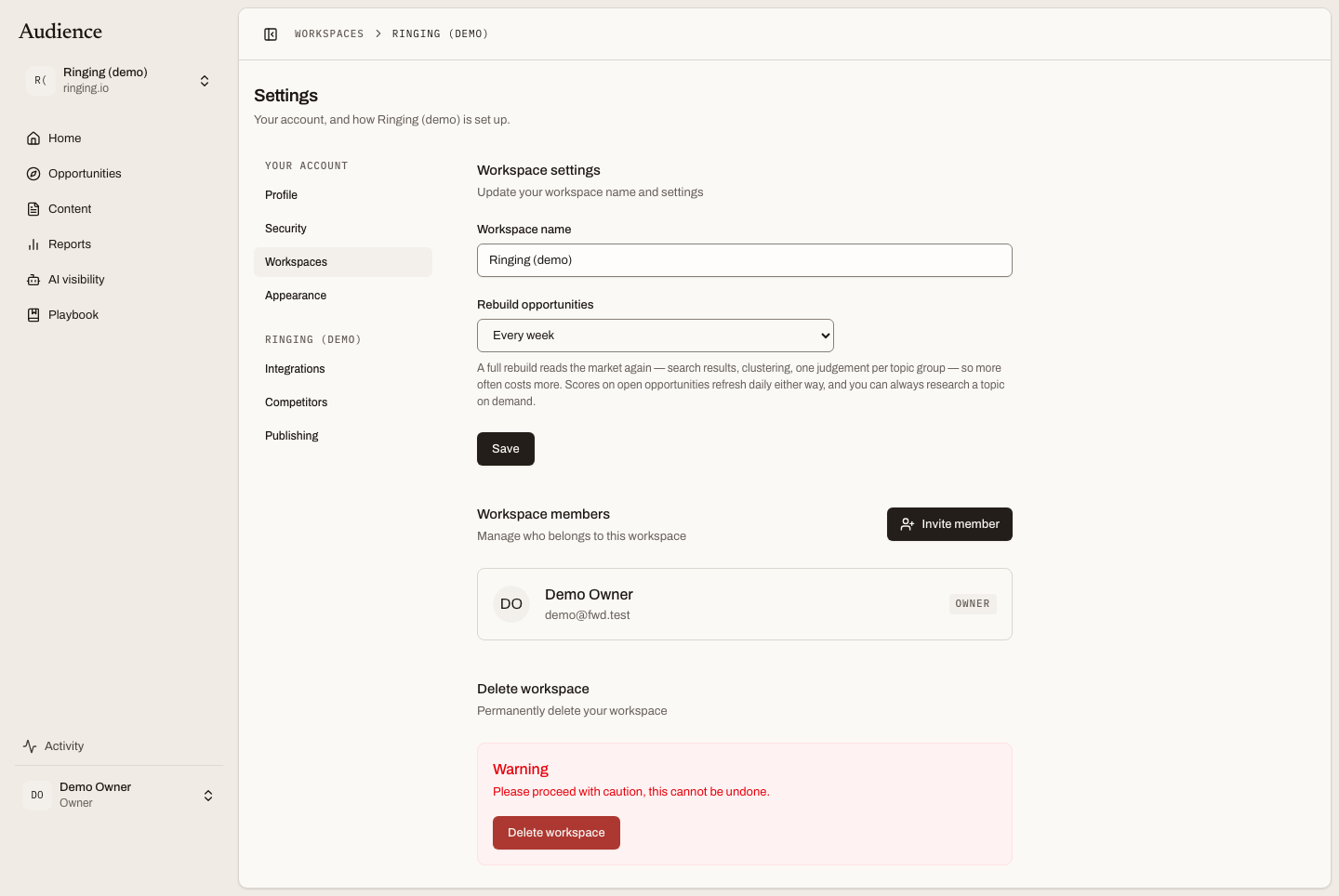 Members, their roles, and the invitations still waiting to be accepted.
Sending an invitation
- Open the workspace menu in the sidebar (click the workspace name) and choose Workspace.
- Under Workspace members, press Invite member.
- Enter the person's email address and choose a role: Admin, Editor or Viewer. Owner is not assignable here.
- Send. The invitation appears under Pending invitations until it is accepted, and you can cancel it from there.
Only owners and admins can invite. Editors and viewers see the members list but not the button.
Which role to give
| Role | Give it to | What they can do |
|---|---|---|
| Admin | A second person who runs the workspace | Everything except deleting the workspace: setup, integrations, the playbook and company profile, the AI visibility panel, members and roles |
| Editor | The people who decide topics and review drafts | Approve and reject opportunities, research topics, approve outlines and drafts, comment, add topic exclusions |
| Viewer | Stakeholders who need to see, not decide | Read everything, comment on drafts |
Every member can read everything in the workspace. The full matrix is in Who does what.
What the invited person sees
The email carries a link. What happens next depends on whether they already have an account.
- A new person is taken to Create your account. Their invitation is attached to the sign-up, so when they finish they land in your workspace. Without a valid invitation link, the registration page says: Accounts are created by invitation. Ask a workspace owner to invite you, then open the link in that email.
- Someone who already has an account signs in and sees a Pending workspace invitations window on Home: Accept or decline the workspaces you have been invited to join. Each row names the workspace and who invited them, with Accept and Decline.
Once accepted, the workspace appears in their switcher and they can move between workspaces from the sidebar.
Managing members afterwards
From the same Workspace page:
- Change a member's role from the dropdown on their row. Owners' roles are fixed.
- Remove a member with the remove control on their row. Owners cannot be removed.
- Cancel an invitation that has not been accepted from Pending invitations. Expired invitations are deleted automatically.
A person can leave a workspace they belong to from Settings → Workspaces, using the leave control on its row. Owners cannot leave; a personal workspace cannot be left either.
Related
- Workspace and members for workspace name, rebuild cadence and deleting a workspace.
- Account and security for the invited person's own profile, password and two-factor settings.