Set up
Connect Search Console
Step 2 of setup and the Integrations settings page. Search Console is the single strongest signal Scout has, what it unlocks, and what Scout does without it.
Search Console tells Scout which queries already bring people to your site and which of your pages are slipping. It is the single strongest signal Scout has, and it costs nothing to connect. The setup card marks it Strongly recommended for that reason.
The step opens with Connect what people already search. and two cards: Search Console, and Google Analytics, which is marked Optional.
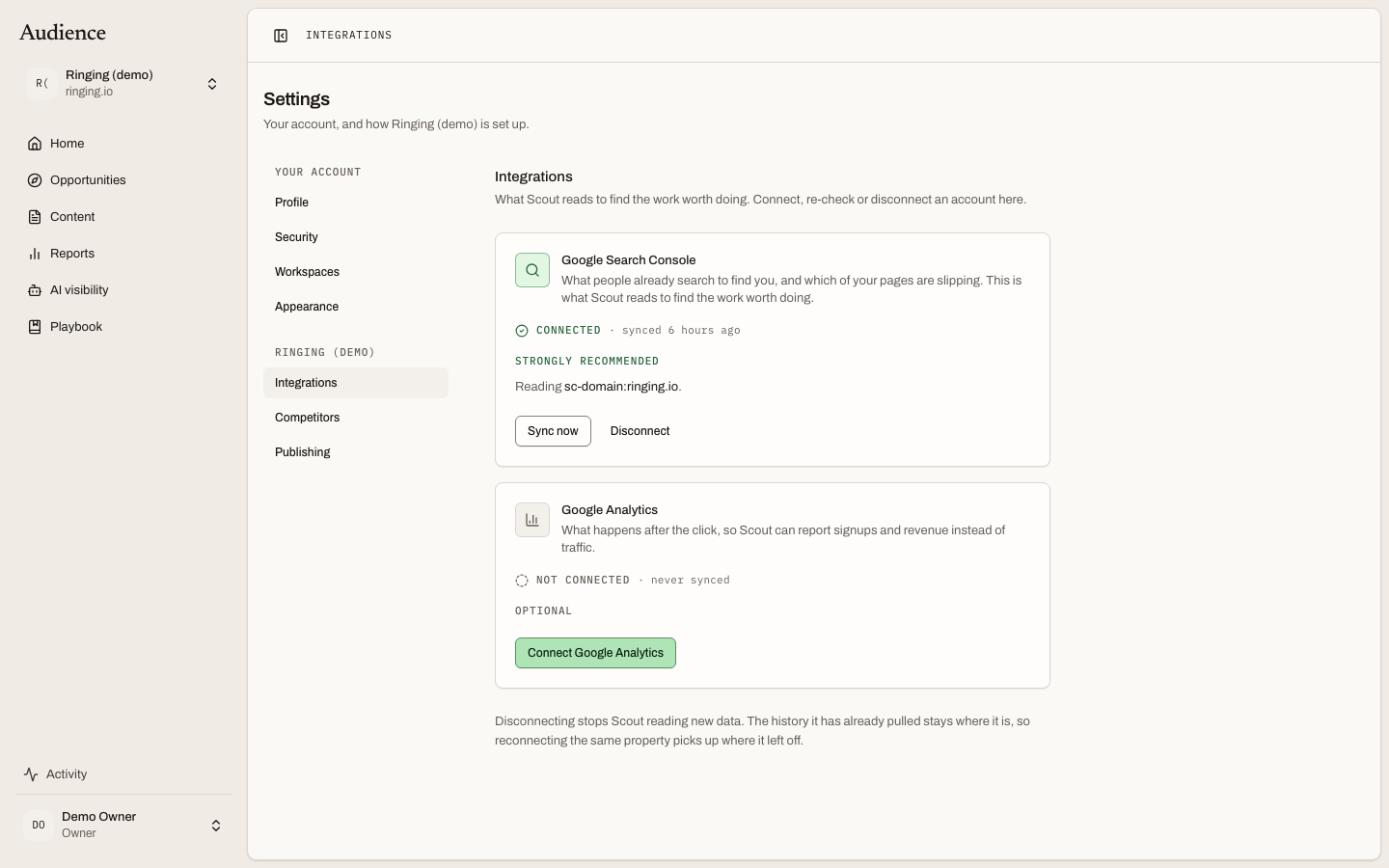 The same two cards appear in Settings after setup, with Sync now, Reconnect and Disconnect.
Connecting
- Press the connect button on the Search Console card. Google's own consent screen opens.
- Sign in with the Google account that has access to the property for your site, and allow read access.
- Google sends you back to Audience. Scout matches your site's domain against the properties on the account.
If exactly one property matches, Scout picks it and the card reads Reading {property}. If the match is genuinely ambiguous, for example a domain property and a URL-prefix property for the same site, a property picker appears and you choose. Scout starts pulling your history in the background as soon as the property is set. The footer notes: Scout is pulling your history in the background.
What it unlocks
| Where | With Search Console |
|---|---|
| Every opportunity score | The "what your own search data says" component is measured rather than marked not measured |
| The opportunity queue | Topics you are close to ranking for, pages that are slipping, and queries where people see you but do not click |
| Reports | Organic clicks, impressions, click-through rate and position, and the whole Overview tab |
| An opportunity's "Against what you already publish" panel | Search Console overlap with your existing pages |
| Content performance | How each page Scout published is doing, week by week |
Without it
Scout still works. It reasons from market data instead, and it says so wherever the gap shows rather than pretending.
- The first-party component of every score is marked not measured and its weight moves to what Scout could measure. The score explanation records Capped — Search Console is not connected.
- Home's clicks card reads Connect Search Console.
- Reports Overview says Nothing to report yet. until the first sync lands.
- The cannibalization panel on an opportunity says not connected for overlap.
If you skip the step, the footer reads Continue without it, and a note follows: You can connect Search Console any time from Settings. Scout will work from market data until you do.
Keeping it connected
Open Integrations from the workspace menu at any time.
- Sync now re-checks the connection and pulls what is new.
- Continue connecting appears if a consent flow was started but never finished.
- Reconnect appears if the grant expired, failed or was revoked.
- Disconnect stops Scout reading new data.
Disconnecting does not delete anything. As the page says: The history it has already pulled stays where it is, so reconnecting the same property picks up where it left off.
What happens next
Once connected, recent search data refreshes every morning, and Scout re-scores every open opportunity against it. See What runs when. The next step is Add your knowledge, which is optional.