Home
Your weekly briefing
Home answers four questions in order. What should I do this week, what is waiting on me, is any of this working, and what has Scout figured out.
Home is not a dashboard. It is the one page to read on a Monday. It answers four questions, in this order: what should I do this week, what is waiting on me, is any of this working, and what has Scout figured out. Everything on it links to the place where you act.
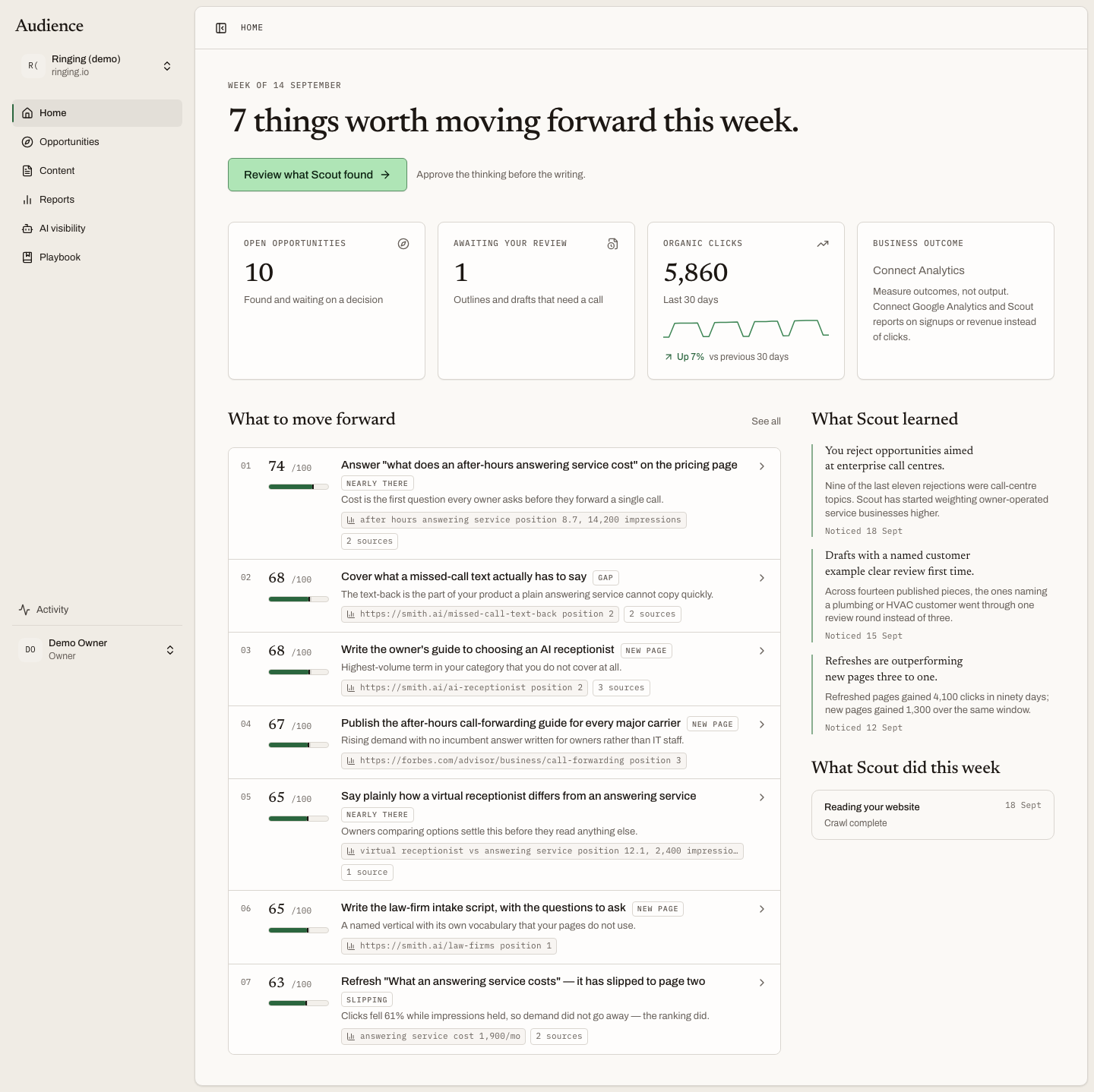 The masthead counts what is worth moving forward. The button takes you to the queue.
The masthead
The eyebrow reads Week of {date}. The heading counts: Nothing needs you this week., One thing worth moving forward this week., or {n} things worth moving forward this week.
Below it, one primary button: Review what Scout found, with the line that describes how Audience works, Approve the thinking before the writing. It opens the opportunity queue.
While the workspace is still being built
During setup the heading changes to Scout is still getting to know you. and the button to Finish setting up, with the note A few minutes now, and this page fills itself in. A build panel shows the current step, a progress bar, the counters that have landed, Still coming: …, and Waiting on you: … with a link back into setup. The panel disappears once the build is done.
The four numbers
Four cards decide whether the week is on track. Each one says what it cannot measure rather than showing a zero it did not earn.
| Card | What it shows | When it cannot |
|---|---|---|
| Open opportunities | Found and waiting on a decision | Nothing found yet |
| Awaiting your review | Outlines and drafts that need a call | Nothing waiting |
| Organic clicks | The last 30 days, with a trend against the 30 before | Connect Search Console |
| Business outcome | A label taken from your Analytics property, for example Signups from organic | Choose a property if Analytics is connected but no property is chosen; otherwise Measure outcomes, not output. Connect Google Analytics and Scout reports on signups or revenue instead of clicks. |
What to move forward
The top five to seven recommendations, numbered, best first. Each shows its score, a type badge, a one-line reason, one measured evidence chip, and a {n} sources button that opens the sources behind it in a drawer so you can check the evidence without leaving the page.
The badges say what kind of work each one is:
| Badge | Meaning |
|---|---|
| New page | A topic you have not written about |
| Refresh | An existing page worth updating |
| Slipping | A page losing ground it used to hold |
| Nearly there | A search you almost rank well for |
| Gap | A search a confirmed competitor wins and you do not |
| Cluster | Several related searches that one article should answer |
| AI visibility | A buyer question an assistant answered without you |
See all opens the queue. Before the first scan the section says Scout has not found anything yet and explains that the first scan runs once your site is crawled and Search Console is connected.
What Scout learned
The right rail carries one to three insights Scout drew from your own decisions and numbers, each with a headline, a line of detail and Noticed {relative time}. Empty at first: Nothing learned yet. Scout picks up patterns from what you approve, edit and reject. Give it a few decisions and it will start telling you what it noticed. Findings with evidence attached live under Reports.
Running now
While anything is running, live cards show each run's label, its current step and a progress bar. The page refreshes itself every few seconds until they settle, so you can leave it open and watch a scan land.
What Scout did this week
The last six finished runs, each with its outcome or, if it stopped early, its error and a Retry button. Retrying picks up where the run stopped rather than starting over. The full record of every run and every agent call is on the Activity page, reached from the indicator at the foot of the sidebar.
Invitations
If you have been invited to another workspace, a Pending workspace invitations window opens when you arrive, with Accept and Decline for each. See Invite your team.