Opportunities
Research a topic
How to ask Scout to look into a topic, a search term, a keyword list or a competitor, and where the results land.
The queue is what Scout found on its own. Research is what you ask it to find. Give it a topic, a term, a list or a competitor's domain, and a couple of minutes later anything worth writing is in the queue beside everything else, judged by the same measures.
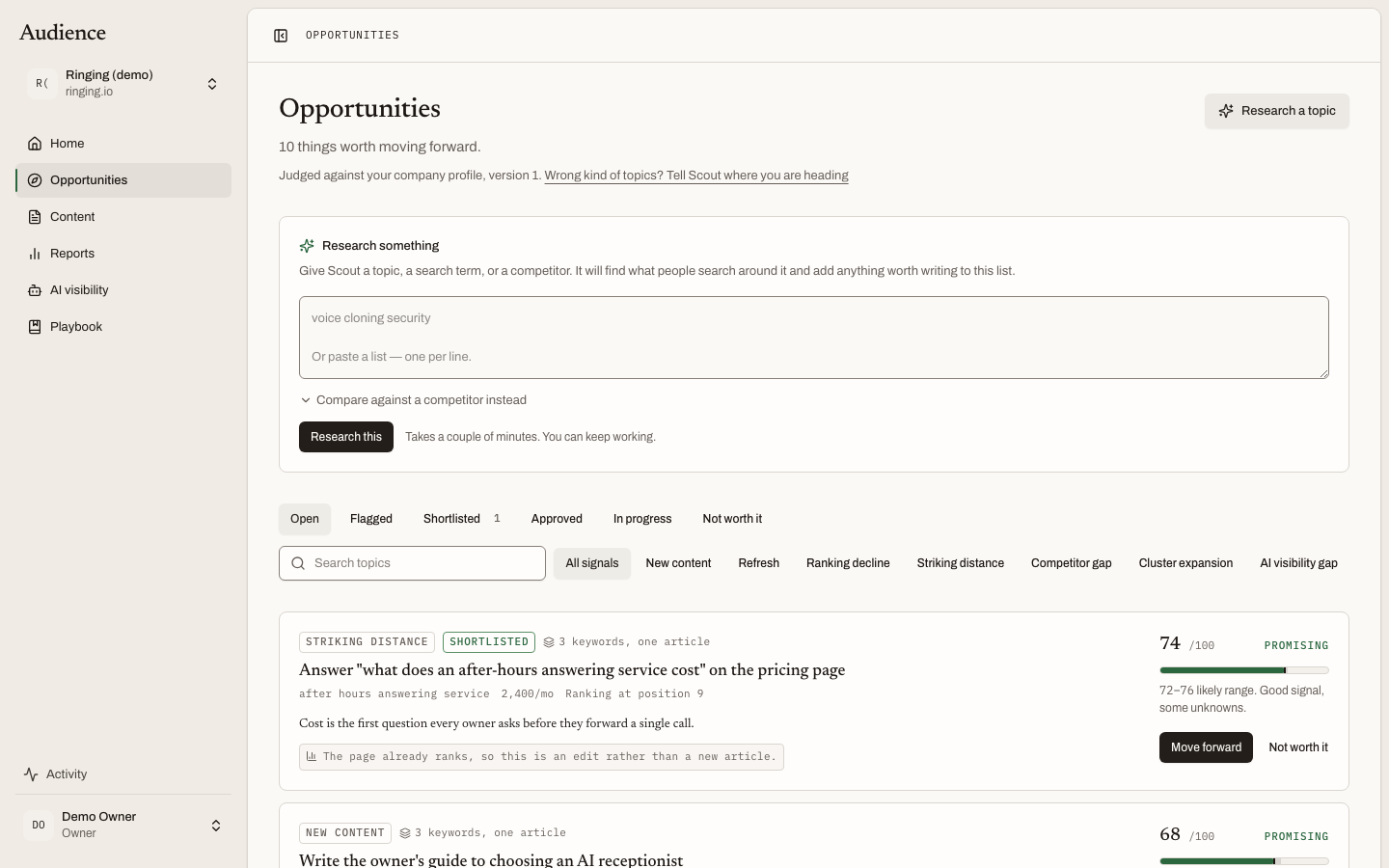 Research something: a topic, a search term, a competitor.
Opening the panel
Click Research a topic at the top right of Opportunities. The panel is headed Research something: "Give Scout a topic, a search term, or a competitor. It will find what people search around it and add anything worth writing to this list."
When the queue is empty the panel is already open, because asking Scout to look at something is the only move on the page.
What you can give it
- A topic or a term. Type it into the box, for example "deepfake detection api". Scout finds what people search around it.
- A list. Paste one term per line. The counter beside the button shows how many terms will be researched; a request takes up to 25.
- A competitor. Open Compare against a competitor instead and enter a domain. "Scout looks for what they rank for and you do not."
Then click Research this. The panel says "Takes a couple of minutes. You can keep working."
What happens next
Scout expands what you gave it into the searches people actually make, groups variations into single articles, judges each group against your company profile, scores it and applies the guardrails. Anything that clears them appears in the queue as an open topic; anything that does not appears under Flagged, with the reason. A progress banner shows the run while it lasts, and the list refreshes when it lands.
A researched topic is scored exactly like a discovered one, so the two sit side by side and can be compared honestly.
Who can research
Research spends provider and model budget, so it needs the same permission as approving an opportunity: editors, admins and owners. A viewer sees the panel with the note "Only editors and above can start research."
The second way in
The AI visibility Questions tab has its own research action. A question your buyers asked an assistant, which the assistant answered without naming you, can be sent to research on its own or in a batch of up to 25 from the Absent lane. It arrives in this queue as a topic, carrying the move the assistant's answer pointed at, and the question is marked "Sent to research" so it is not offered twice.