Content
The content pipeline
How the Content page groups every article by stage, shows who it is waiting on, and how each article's own record explains what happened and who decided it.
Once you move an opportunity forward, it becomes an article in production. The Content page is where every one of those articles sits, from the moment Scout starts researching to the moment an approved version leaves as a download. It is built to be read from the top: the stages that need a person come first, then what Scout is working through, then what is finished.
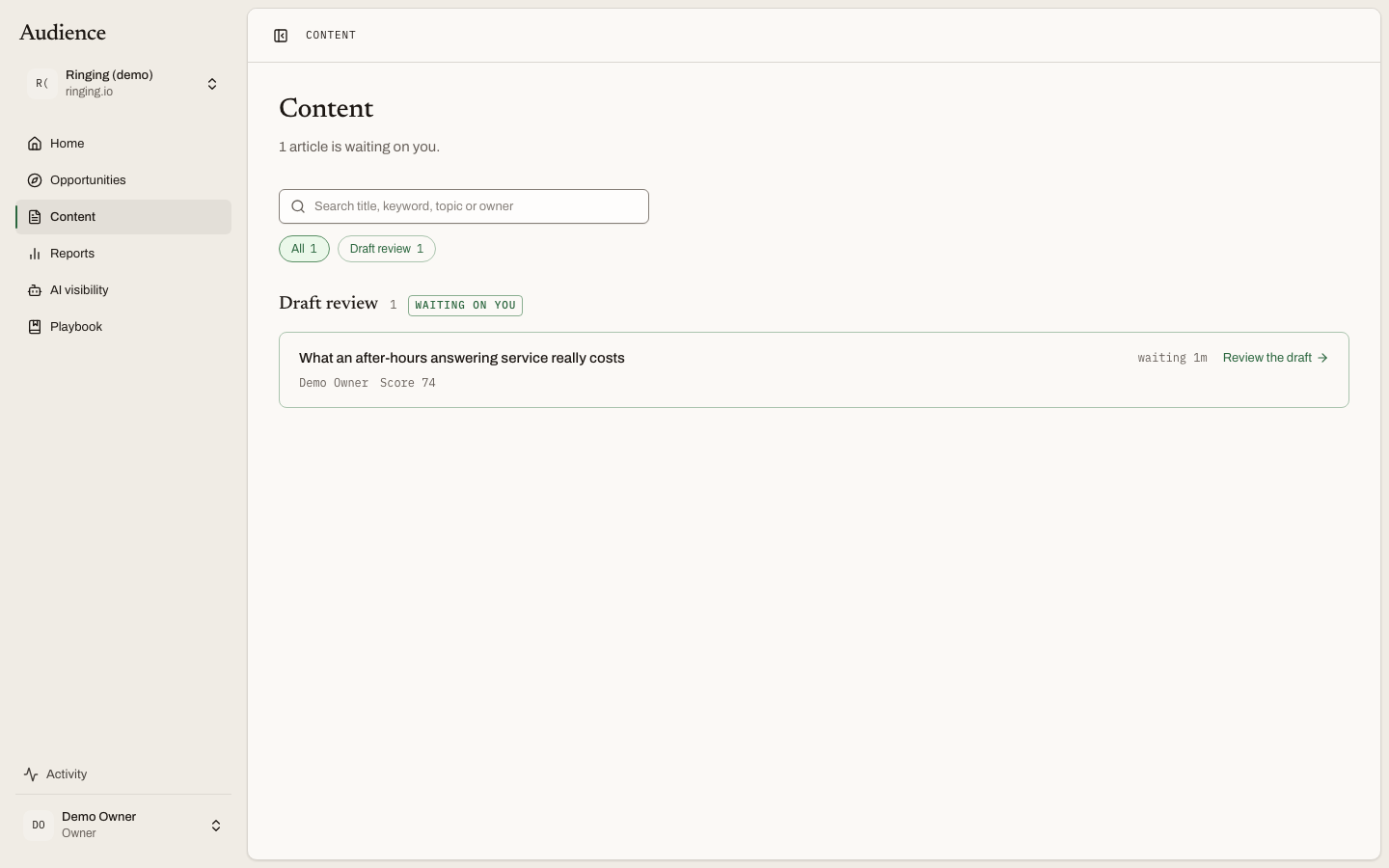 Stages that are waiting on a person come first. Scout's own work follows.
The header count
The line under the heading says the one thing you need to know before you read anything else:
- "{n} articles are waiting on you." when any stage needs a decision from a person.
- "{n} articles in production. Nothing is waiting on you." when Scout has everything it needs.
- "Nothing in production yet." before the first opportunity has been approved.
Finding an article
The search box looks across title, keyword, topic and owner. The stage chips underneath show All plus every stage that currently has something in it, each with a count. Stages that are waiting on a person are highlighted so they are the first chips you see. Filtering to a stage or a search term that matches nothing says so: "Nothing matches. Clear the search or pick another stage."
Reading a stage
Each stage is a section with its heading and count. A stage that needs a person carries a Waiting on you badge. Sections show five rows and then a Show all {n} control, so a long backlog does not push the next stage off the screen.
A row shows the title, the keyword and its monthly searches, a Refresh badge when the article updates an existing page rather than adding a new one, the assignee, and Score {n}, the opportunity score the article was approved on.
Three kinds of row look different on purpose:
- Rows waiting on a person show how long they have waited, as waiting 4h or waiting 3d, and the next action: Review the topic, Review the outline or Review the draft. The wait turns amber after 48 hours.
- Rows Scout is working on show the current step and a progress bar rather than a spinner, so you can tell "writing the outline" from "checking sources".
- Failed rows are not links. They show what went wrong, or "Scout could not finish this step." when there is nothing more specific to say, and a Try again button that picks up where the step stopped.
The stages
| Stage | Who it waits on | What is happening |
|---|---|---|
| Researching | Scout | Reading what ranks, what searchers want and which facts have a source |
| Topic review | You | Confirming the topic and angle before anything is written |
| Writing outline | Scout | Turning the research into a structure |
| Outline review | You | Approving the thinking before the writing |
| Drafting | Scout | Writing the article from the approved outline |
| Draft review | You | Reading the draft, its score and its flags, then deciding |
| Changes requested | Scout | Revising against the notes and flags you sent back |
| Approved | You | Ready to leave as Markdown |
| Publishing | Scout | Handing the approved version to a destination |
| Published | Nobody | Live, and now tracked in Reports |
| Failed | You | A step stopped; Try again restarts it |
Three of these wait on a person: Topic review, Outline review and Draft review. They are the ones the Waiting on you badge marks.
The empty state
Before the first approval the page says "Nothing in production yet" and tells you what fills it: "Approve an opportunity and Scout starts researching it. Everything it produces from that point, research, outline, draft, appears here at the stage it has reached." The way in is the opportunity queue.
An article's record
Open any row and you reach the article's own page. Its job is stated in one line: what happened to this, and who decided it.
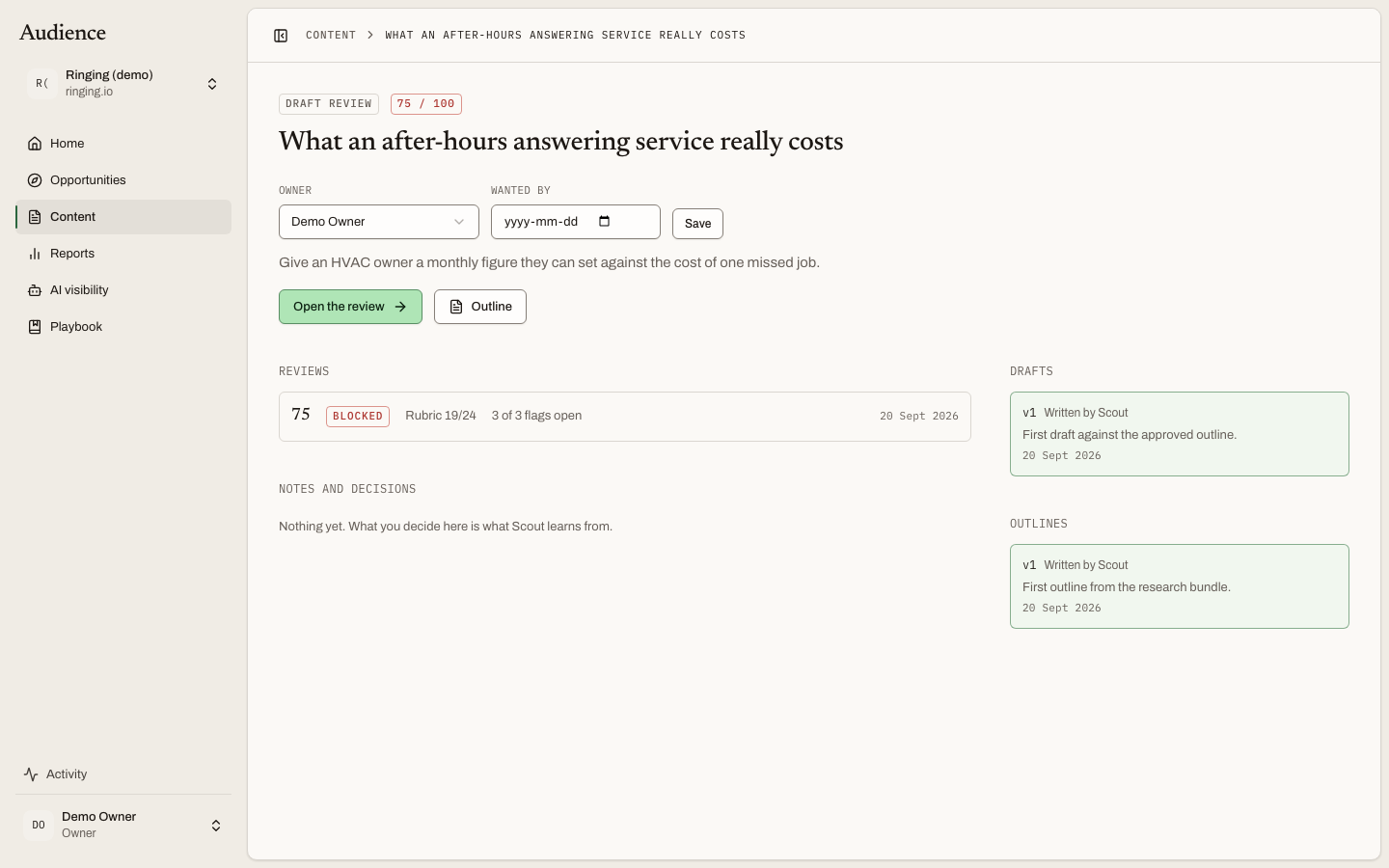 Every version, review and decision, in one place.
At the top: the status badge, a Refresh badge where it applies, the quality score badge once a review has run, the title, the keyword with its monthly searches and audience, and the assignment control. Owners, admins and editors can set an owner and a due date here. Below sits the goal the article was approved to meet.
The buttons go to the work: Open the review, Outline, and Published page once the article is live.
Then the sections:
- What this was built from. The search intent, the recommended angle, a count of sources, and See what Scout read, which opens a drawer titled "Research behind this article" showing every source Scout consulted before it wrote anything.
- Reviews. Every review that has run, with its score, its routing label, the rubric result as x/y, and how many flags are still open.
- The feedback thread. Read-only here; you write into it from the review screen.
- Drafts and Outlines. Every version, labelled Written by Scout or with the editor's name, with an Approved badge on the one that counts and a summary of what changed.
- Decisions. Who approved or sent back what, and when.
- Publication. Pending, Draft created, Published or Failed.
While Scout is the one moving the article, the page refreshes itself every few seconds, so you can leave it open and watch a step land.
What happens next
An article that has just entered production goes to topic review, then outline review. One with a draft goes to draft review. One that is approved goes to publishing.