Settings and administration
Account and security
Your profile, password, two-factor authentication, passkeys and appearance, and the dialog that shows workspace invitations waiting for you.
Your account is yours across every workspace you belong to. These settings are reached from the account menu at the foot of the sidebar and are not tied to any one workspace.
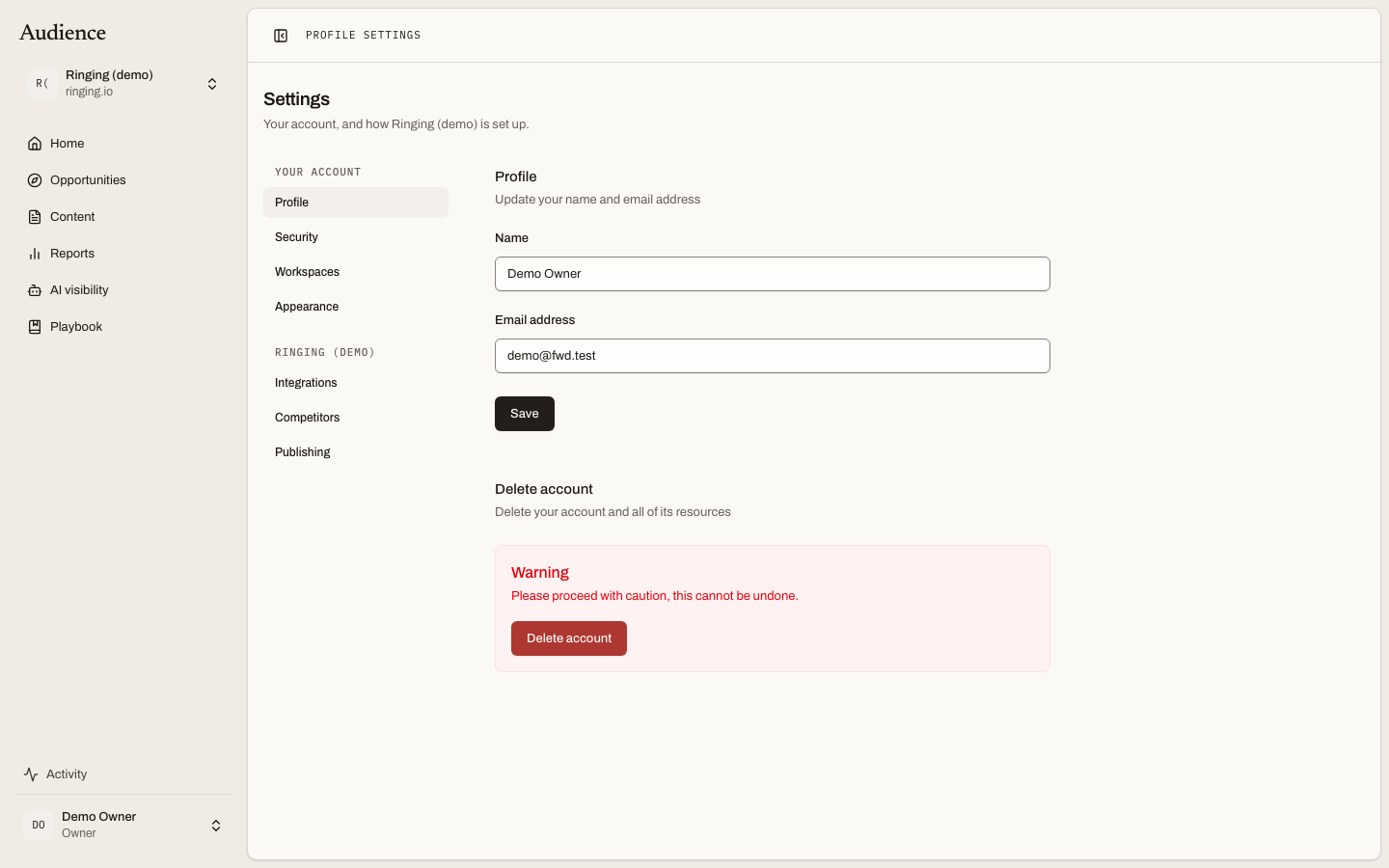 Name and email, and the notice you see until an address is verified.
Profile
Profile holds your name and email address. Changing your email sends a verification link to the new address, and until you open it the page shows an unverified-email notice with a link to send it again. Save applies the change.
At the bottom of the page is Delete account. It removes your account and your personal workspace. It does not delete shared workspaces you belong to; if you own one, transfer it or delete it first from Workspace and members.
Security
Security asks you to confirm your password before it opens, then offers three things.
- Update password. Your current password, then the new one twice.
- Two-factor authentication. Turn it on to require a code from an authenticator app at login, and save the recovery codes it shows you somewhere safe. When you sign in with two-factor on, the login screen asks for the code, or a recovery code if you have lost the app.
- Passkeys. Register a passkey to sign in with your device's fingerprint, face or PIN instead of a password. You can register more than one and remove any of them.
Appearance
Appearance sets the theme: Light, Dark or System, which follows your operating system. The choice is remembered on this device and also applies to the documentation you are reading now.
Invitations waiting for you
When a workspace owner or admin invites you and you already have an account, the invitation appears as a Pending workspace invitations dialog the next time you open Home. Each one shows the workspace name and who invited you, with Accept and Decline. Accepting adds the workspace to your switcher and takes you into it. Declining removes the invitation; the owner can send another. Invite your team describes the other side of this.
Signing in
The front door is Log in. Accounts are created by invitation only, so there is no sign-up form unless you arrived from an invitation link. Forgot your password? sends a reset link to the address you signed up with. If your email is unverified, you are asked to check your inbox before you can go further.