Settings and administration
Workspace and members
Managing your workspaces, their names and rebuild cadence, who belongs to them and in what role, and how to invite, remove and switch.
A workspace is one company, one site and one team. Everything in Audience belongs to a workspace, and every address in the product starts with the workspace you are in. You can belong to several, and switch between them from the sidebar.
Your workspaces
Open the account menu and choose Workspaces, or go to Settings → Workspaces. The list shows every workspace you belong to: its name, a Personal badge where it is yours alone, and your role in it. Each row offers what your role allows: Edit workspace for owners and admins, View workspace for editors and viewers, and Leave workspace for anyone who is not the owner of a shared workspace.
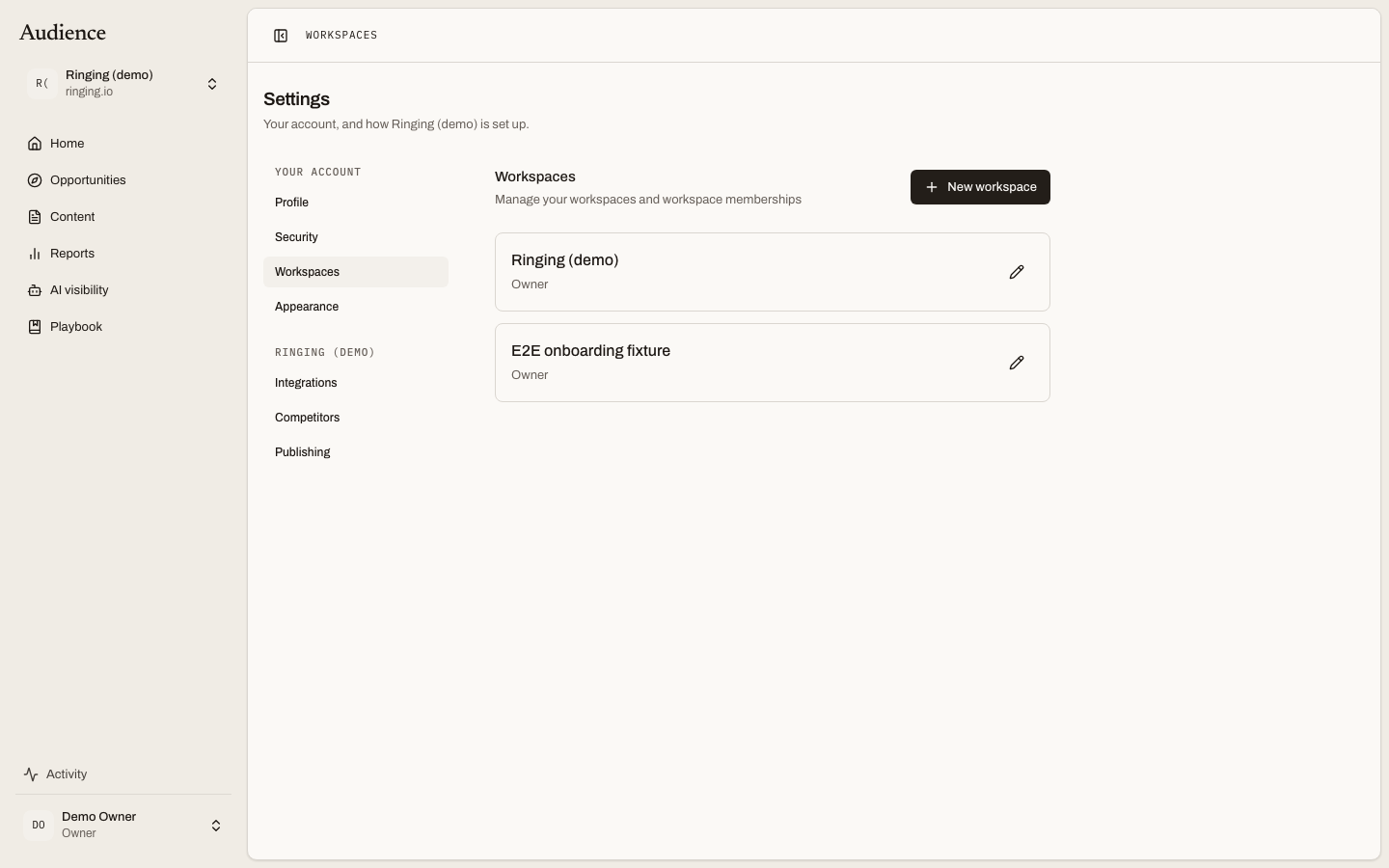 Your role in each workspace decides which buttons appear.
New workspace starts a fresh one and takes you into setup.
Workspace settings
Open a workspace's settings from the list, or from the workspace menu in the sidebar (Workspace). Owners see the settings block at the top; everyone else sees the workspace name as a heading.
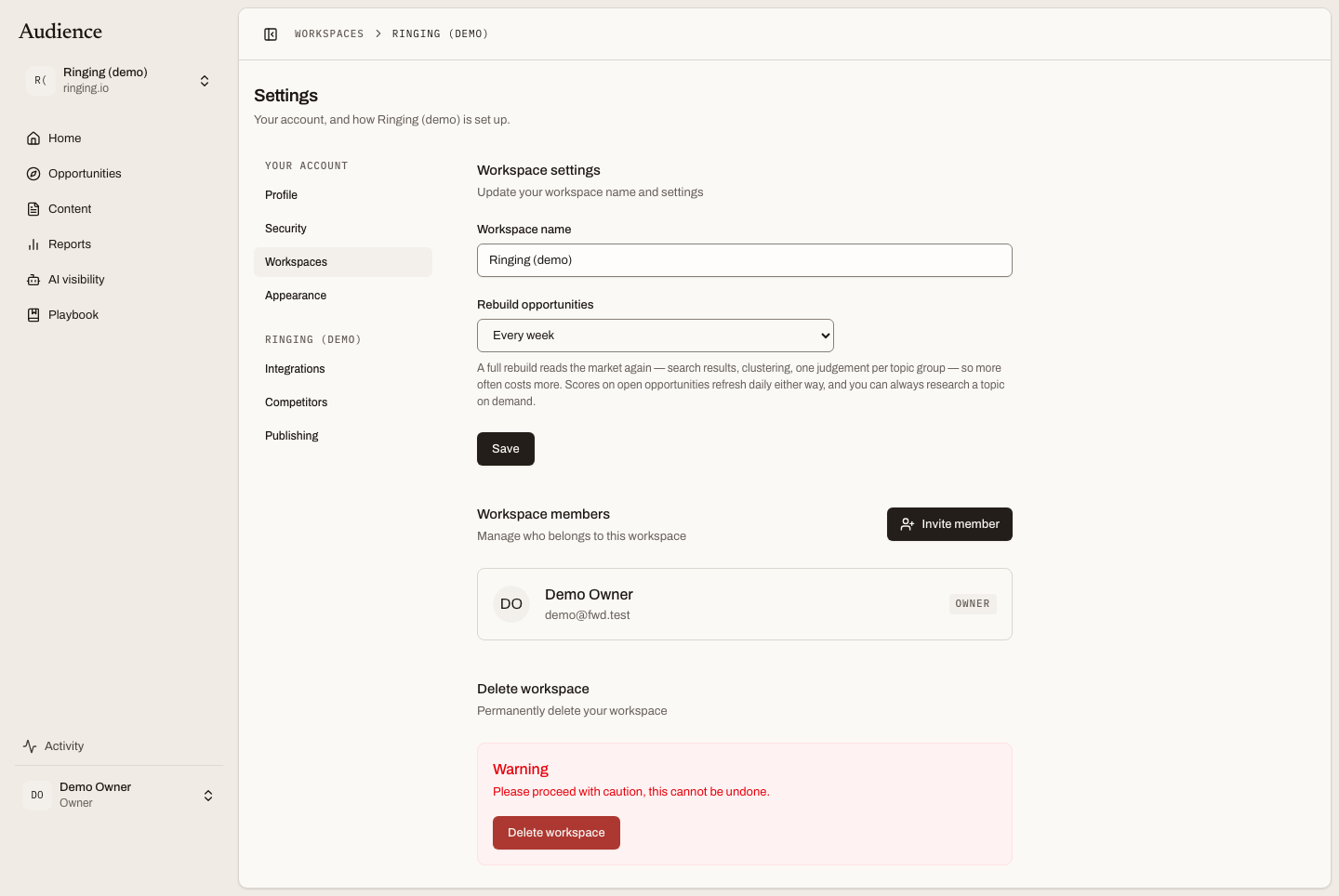 Name, rebuild cadence, members, invitations, and, for owners, deletion.
Workspace name. What appears in the switcher and at the top of every invitation.
Rebuild opportunities. How often Scout reads the market again to find new topics: Every day, Every three days, Every week, Every two weeks or Only when I ask. The help text explains the trade-off: a full rebuild reads the market again, search results, clustering and one judgement per topic group, so more often costs more; scores on open opportunities refresh daily either way, and you can always research a topic on demand. See What runs when.
Members
Workspace members lists everyone in the workspace with their avatar, name, email and a role dropdown. Change a role by picking a new one; the change saves at once. Remove a member with the button at the end of their row. The owner's row is fixed: an owner's role cannot be changed here and an owner cannot be removed or leave.
The roles are Admin, Editor and Viewer when you invite or reassign; the owner is whoever created the workspace. Who does what lists what each role can do.
Inviting people
Invite member asks for an email address and a role. The person receives an email with a link. Someone who already has an Audience account accepts from Home, where a Pending workspace invitations dialog lists every invitation waiting for them with Accept and Decline. Someone new creates their account from the link, because accounts in Audience are created by invitation only.
Until it is accepted, an invitation sits under Pending invitations with its email and role and a cancel button. Invitations that are never accepted expire on their own. Invite your team walks through it.
Deleting a workspace
At the bottom of the settings, owners of a shared workspace see Delete workspace. The warning is plain: this cannot be undone. Everything the workspace holds, including its opportunities, articles, playbook and reports, goes with it. A personal workspace cannot be deleted from here.
Switching workspaces
The switcher at the top of the sidebar shows the current workspace's name with its site domain underneath. Choose another workspace and you land on the same kind of page you were on: from Opportunities to Opportunities, from Reports to Reports. Anything specific to the workspace you left, such as an open article, is dropped, since it would not exist in the next one. The switcher also holds the shortcuts to Workspace, Integrations and Competitors settings.