Opportunities
Reading the opportunity queue
How the Opportunities screen is ordered, what each row tells you, and what the filters, badges and empty states mean.
Opportunities is where Scout puts what it found. Every row is a topic it thinks is worth an article, with a score, the reason it thinks so, and the evidence behind that reason. The screen exists to be worked down from the top: read the thinking, then decide.
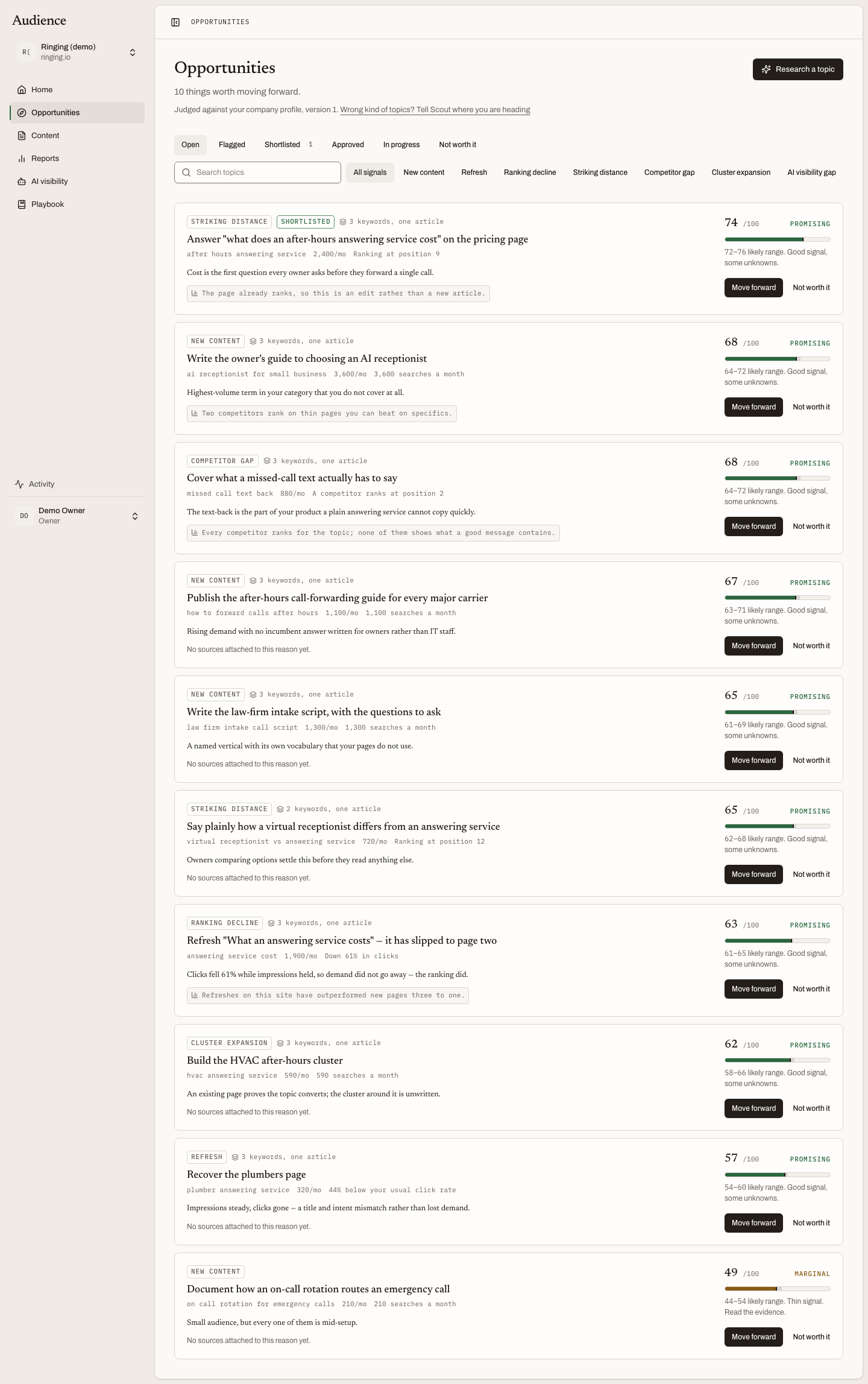 The queue is ordered by score and nothing else.
How the list is ordered
By score, highest first. There is no grouping and no pagination. The list does not reorder itself while you are reading it: a scan or re-judge that changes scores shows a progress banner at the top, and the list refreshes when the run lands.
The heading counts what is open: "12 things worth moving forward." When the queue is empty it says "Nothing open right now."
The lines under the heading
Three short lines can appear under the heading, each telling you something about how the queue was built.
Judged against your company profile, version N. Every topic was judged for fit against this version of the profile Scout holds for you. If the topics feel wrong for your business, the link beside it says Wrong kind of topics? Tell Scout where you are heading, which opens the direction fields. Once you have set a direction the line reads "and the direction you set" and links to Review it.
N topics kept out by your rules. Topics a rule under Topics Scout won't propose removed before scoring. The link takes you to the rules, so a rule that is too broad is one click from being found.
Scout set aside N topics that were not about your business before judging the rest. A disclosure that expands to show the most-searched of them. See Topics Scout set aside.
Filters
The status chips carry counts, so you can see the shape of the queue before you click.
| Chip | What it shows |
|---|---|
| Open | Topics waiting on a decision. This is the default view. |
| Flagged | Topics that failed a guardrail. Kept out of the shortlist and out of the bin. |
| Shortlisted | Topics you have marked as worth keeping in view without approving yet. |
| Approved | Topics you moved forward. Each one is now an article in Content. |
| In progress | Approved topics Scout is working on. |
| Not worth it | Topics you rejected. |
Below the status chips, the type chips narrow the list to one kind of signal. All signals shows everything; the others are the types described in The score, such as a page that is nearly ranking, a page that is slipping, or a gap a competitor owns.
The search box matches on the topic and the proposed title.
What a row shows
- Type badge and status badge.
- "{n} keywords, one article" when Scout grouped several variations of the same question into one topic, so you commission one page rather than several that compete.
- The proposed title, which is the row's link.
- The keyword and its monthly search volume.
- The primary signal: the strongest reason this topic is here, such as the position your page already holds for the query.
- Guardrail reasons, inline, when the topic is flagged: "Fit with what you sell scored 28 out of 100, below the 40 this workspace treats as the minimum."
- The reason, with clickable evidence. Clicking a piece of evidence opens the source drawer showing where the number or the claim came from.
- The score dial, with the confidence range beneath it.
Row actions
Editors, admins and owners see actions on the right of each open row. None of them are optimistic: the row waits for the server to confirm before it changes.
- Move forward approves the topic and starts research. See Deciding.
- Not worth it rejects it, with an optional reason.
- Do it anyway appears on flagged rows instead. It overrides the guardrail and puts the topic in the queue. See Guardrails and flagged topics.
Viewers see the queue without actions.
Research a topic
The Research a topic button at the top right opens the research panel. It opens by itself when there is nothing in the queue, because then asking Scout to look at something is the only move on the page. See Research a topic.
When the list is empty
Three different things can be true when you see no rows, and the screen says which.
Everything Scout found is flagged. Every topic failed a guardrail, usually fit with what you sell, so none reached the queue. The button Review the flagged topics switches to the Flagged filter, where each row says why it was held back. This is the state you will see if your company profile is thin or wrong, so also check Your company profile.
Nothing matches those filters. A filter or search term excluded everything. Clear it to see the whole queue.
No opportunities yet. Scout has not found anything. The first scan runs after your site is read and, ideally, Search Console is connected. Confirming your competitors gives it more to work with. See Set up your workspace.
Related
- The score
- Deciding
- Your weekly briefing shows the top of this queue on Home.